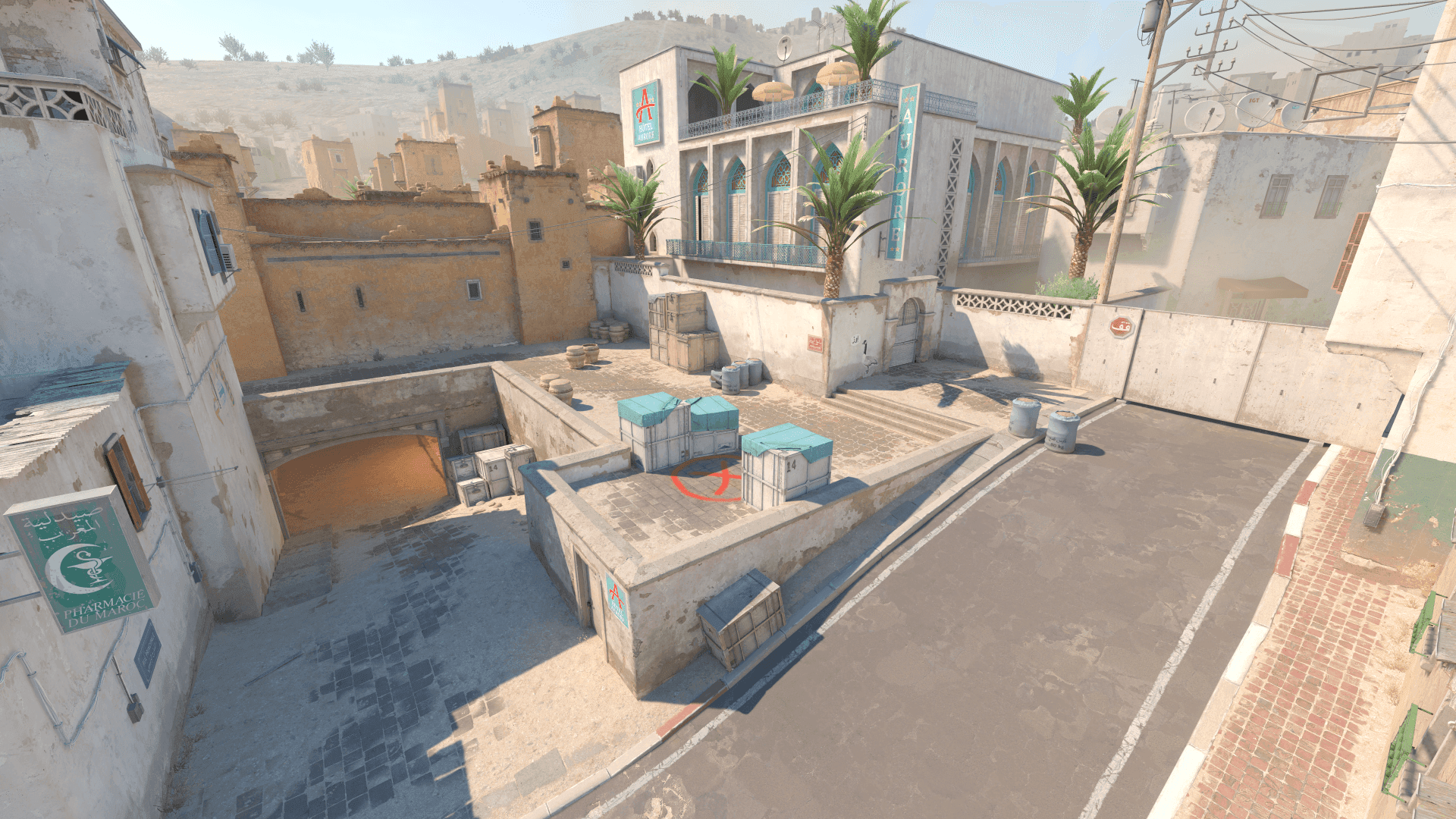
When dot helps
A center dot can make single bullets and long-range taps feel precise. It is especially useful if your line gap makes the center feel too open.
Outline and dot settings change center clarity. They can improve visibility, but they can also make the crosshair feel heavy or cover heads.
A useful CS2 crosshair outline and dot choices baseline should be easy to describe and easy to repeat. If you cannot explain why a value is there, treat it as temporary until testing proves it belongs.
- Write down the exact CS2 crosshair outline and dot choices value you are testing.
- Compare it against your previous setup before deleting the old one.
When dot hurts
During sprays, a dot can make the center feel crowded. If your first bullet improves but sprays get worse, try smaller thickness or disable the dot.
- Judge comfort during real round pressure, not only in a clean preview.
- If the setting creates hesitation, simplify it.
Outline for contrast
Outline helps the crosshair separate from bright or complex backgrounds. Use the smallest outline that solves visibility.
- Use the same routine every time you compare changes.
- Separate first impressions from results after several sessions.
Micro crosshairs
Very small crosshairs can feel clean, but they are unforgiving. Choose a high-contrast color and test visibility in chaotic rounds.
Dots work best when the rest of the crosshair is built around them. Outline works best when it solves a specific map visibility problem.
- Keep the final version stable for at least a few play sessions.
- Review it only when you can name the problem you are solving.
Using Crosshair Outline and Dot in matches
The value of CS2 crosshair outline and dot choices only shows up when it changes what you notice, how confidently you move, or how quickly you can commit to a fight.
- Try it in one full map session before calling it final.
- Watch whether it helps under utility, pressure, and time limits.
- Ask whether it reduces hesitation or creates another thing to manage.
- Keep notes after matches so the next tweak has a clear reason.
Crosshair Outline and Dot mistakes to avoid
Most problems with CS2 crosshair outline and dot choices come from copying too broadly, judging too quickly, or changing several values at the same time.
- Do not judge the setting from one screenshot or one warmup map.
- Do not change multiple major settings during the same test.
- Do not copy a pro setting if it creates discomfort on your gear.
- Do not delete the old version before the new one is proven.
When to revisit Crosshair Outline and Dot
Do not rebuild CS2 crosshair outline and dot choices every time you have a bad game. Revisit it when there is a pattern, a hardware change, a resolution change, or a CS2 update that genuinely affects how the game feels.
- Review after hardware, resolution, driver, or CS2 updates.
- Review when the same problem appears across several sessions.
- Avoid emergency changes right before serious matches.
- Archive the previous stable setup before testing the new one.
Crosshair Outline and Dot checklist
Use this checklist whenever you tune CS2 crosshair outline and dot choices. It keeps the process repeatable and makes future changes easier to understand.
- Test dot visibility without covering distant heads.
- Keep outline subtle on small crosshairs.
- Compare on real map backgrounds, not only black preview panels.
- Avoid changing gap and dot in the same test.