CS2 Settings Lab
CrosshairsGeneratorCompareConfigsToolsBlog
CS2 Settings Lab

Premium Counter-Strike 2 crosshairs, pro configs, generators, and competitive utilities for players who tune every detail.

Fast searchCS2 commandsPro data

Core

CrosshairsGeneratorCompare

Resources

ConfigsToolsBlog

Trust

PlayersSourcesAboutContactChangelog

(c) 2026 CS2 Settings Lab. All rights reserved.

Independent CS2 settings resource. Not affiliated with Valve or Counter-Strike.

Blog
Best crosshairs

CS2 Crosshair Thickness and Length Guide

How to tune CS2 crosshair thickness and length for visibility, precision, spray readability, and different resolutions.

Updated

May 24, 2026

Read time

10 min

Intent

Tune line shape

Key takeaways

Thickness helps visibility but can reduce precision.

Length changes how much visual reference you get around center.

Color and outline can solve problems before thickness.

Different roles can prefer different line shapes.

Resolution affects perceived thickness and length.

1

What this guide solves

Thin lines can feel precise but disappear on difficult backgrounds. Thick lines are easier to see but can cover detail and make the center feel less sharp.

Thickness and length define the visible shape of the crosshair lines. They decide whether the crosshair feels crisp, heavy, tiny, or distracting.

A strong CS2 crosshair thickness and length setup should make real rounds easier to read. It should reduce hesitation, preserve comfort, and stay predictable when the match becomes noisy.

  • Focus on the problem the setting is meant to solve.
  • Keep changes easy to explain and easy to undo.
  • Judge the result in match-like situations.
  • Avoid copying values without context.
2

Recommended baseline

Start with moderate length and low thickness, then adjust based on whether the crosshair disappears or feels too bulky during long-range fights.

The baseline is not meant to be perfect forever. It is a stable starting point that gives you enough control to test the next adjustment honestly.

Once the baseline feels comfortable, save it before experimenting. That makes every future test safer because you can return to a known-good version quickly.

  • Start with a simple setup before adding advanced tweaks.
  • Save the old version before testing.
  • Change one major setting at a time.
  • Keep the setup stable for more than one session.
3

How to test it properly

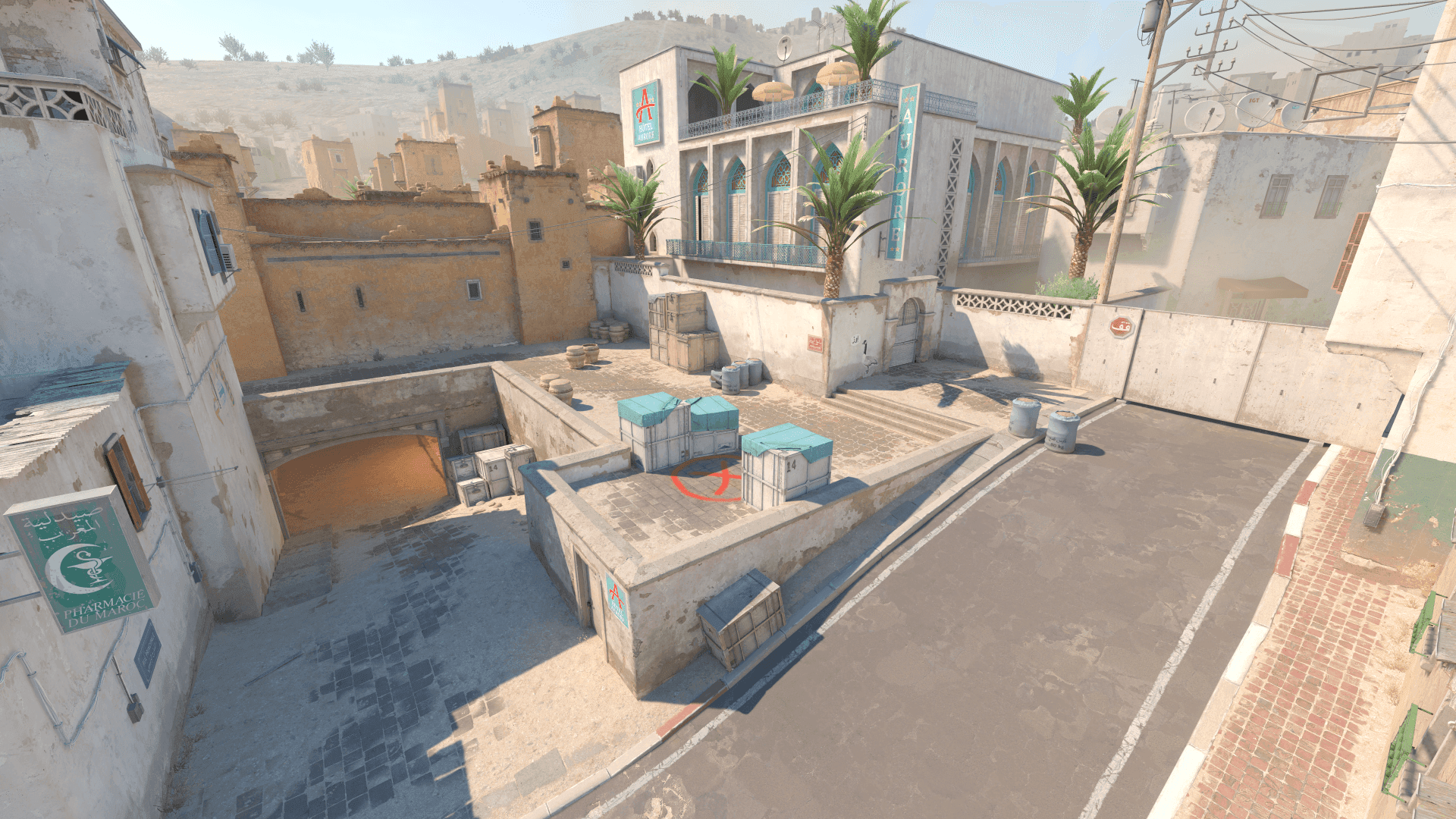
Test line shape on multiple map backgrounds, then use pistol taps, rifle sprays, and target transfers to judge whether the lines remain readable.

The test should include both controlled practice and real pressure. Clean practice tells you whether the setting works mechanically, while matches reveal whether it survives utility, timing, noise, and imperfect decisions.

Do not judge from a single highlight or one bad map. Settings need enough time to feel normal before you can separate discomfort from a genuine problem.

  • Use the same routine for each comparison.
  • Keep unrelated settings unchanged.
  • Take notes after the session.
  • Confirm results across several maps or drills.
4

Role and map adjustments

Entries may prefer slightly more visible lines, while precision riflers and AWP hybrids may prefer thinner, shorter lines.

Role changes what you need from a setup. An entry player, anchor, AWPer, support, and lurker do not always stress the same setting in the same way.

Map pool matters too. Bright maps, dark corners, long angles, cramped sites, and utility-heavy executes can expose different weaknesses in the same profile.

  • Test the setting in the fights your role actually takes.
  • Check at least two maps with different visual styles.
  • Prioritize repeated problems over one-off discomfort.
  • Keep role-specific changes documented.
5

How to apply it in matches

In matches, line thickness and length should give enough reference for the center without pulling focus away from the enemy.

A match-ready setting should fade into the background. You should notice better comfort, clearer information, or cleaner decisions, not the setting itself.

If the setup makes you think too much mid-round, simplify it. Competitive settings are best when they support instinctive play instead of adding another thing to manage.

  • Use it for a full map session before calling it final.
  • Watch how it behaves in pistol rounds, buys, and retakes.
  • Keep notes after real matches.
  • Revert if it creates hesitation under pressure.
6

Common mistakes to avoid

The mistake is fixing visibility only by adding thickness. Sometimes color or outline solves the problem with less clutter.

Most bad setting changes come from impatience. Players make a change after one frustrating match, then change something else before the first test has enough evidence.

A better loop is slower: identify the problem, change one thing, test it, and only keep it if the problem improves across several situations.

  • Do not change several major settings at once.
  • Do not copy settings that do not fit your hardware or role.
  • Do not delete the previous stable version.
  • Do not judge only from screenshots or warmup.
7

When to revisit this setup

Revisit thickness and length after changing resolution, aspect ratio, outline, or crosshair color.

Revisiting does not mean rebuilding from scratch. Often the correct fix is a small adjustment, a restored backup, or removing an old command that no longer belongs.

Good triggers include hardware changes, resolution changes, driver updates, repeated match problems, role swaps, or a CS2 update that changes how the game feels.

  • Review after hardware or resolution changes.
  • Review after major CS2 or driver updates.
  • Review when the same issue repeats across sessions.
  • Avoid emergency changes right before serious matches.
8

Practical setup checklist

Use this checklist when tuning CS2 crosshair thickness and length. It keeps the process structured and prevents the usual cycle of random changes.

The checklist is intentionally practical. You want a setup that can be saved, tested, compared, and restored without turning every match day into a settings experiment.

After the checklist is complete, leave the setting alone for a while. Stability is part of performance, especially when aim and decision-making need to feel automatic.

  • Check line visibility on bright and dark maps.
  • Avoid using thickness to fix every visibility issue.
  • Compare taps and sprays separately.
  • Retune after resolution changes.

On this guide

What this guide solvesRecommended baselineHow to test it properlyRole and map adjustmentsHow to apply it in matchesCommon mistakes to avoidWhen to revisit this setupPractical setup checklist
Related tools
Crosshair GeneratorOpenCS2 Crosshair ImporterOpen

FAQ

Common CS2 setup questions

What thickness should my CS2 crosshair use?

Use the thinnest value that remains visible on your maps and monitor. Increase only when visibility is genuinely poor.

Is longer crosshair length better?

Longer lines give more visual reference but can add clutter. Compact lines are usually cleaner for precision.

Should thickness change with resolution?

Yes, it can feel different after resolution or scaling changes, so retest the crosshair visually.

Can a thick crosshair hurt aim?

It can cover detail or make the center feel less precise, especially at long range.

Next reads

Related CS2 guides

CS2 Crosshair Gap and Size GuideRead guideCS2 Crosshair Outline and Dot GuideRead guideBest CS2 Crosshair Codes to Try FirstRead guide