What Crosshair for Bright Maps changes
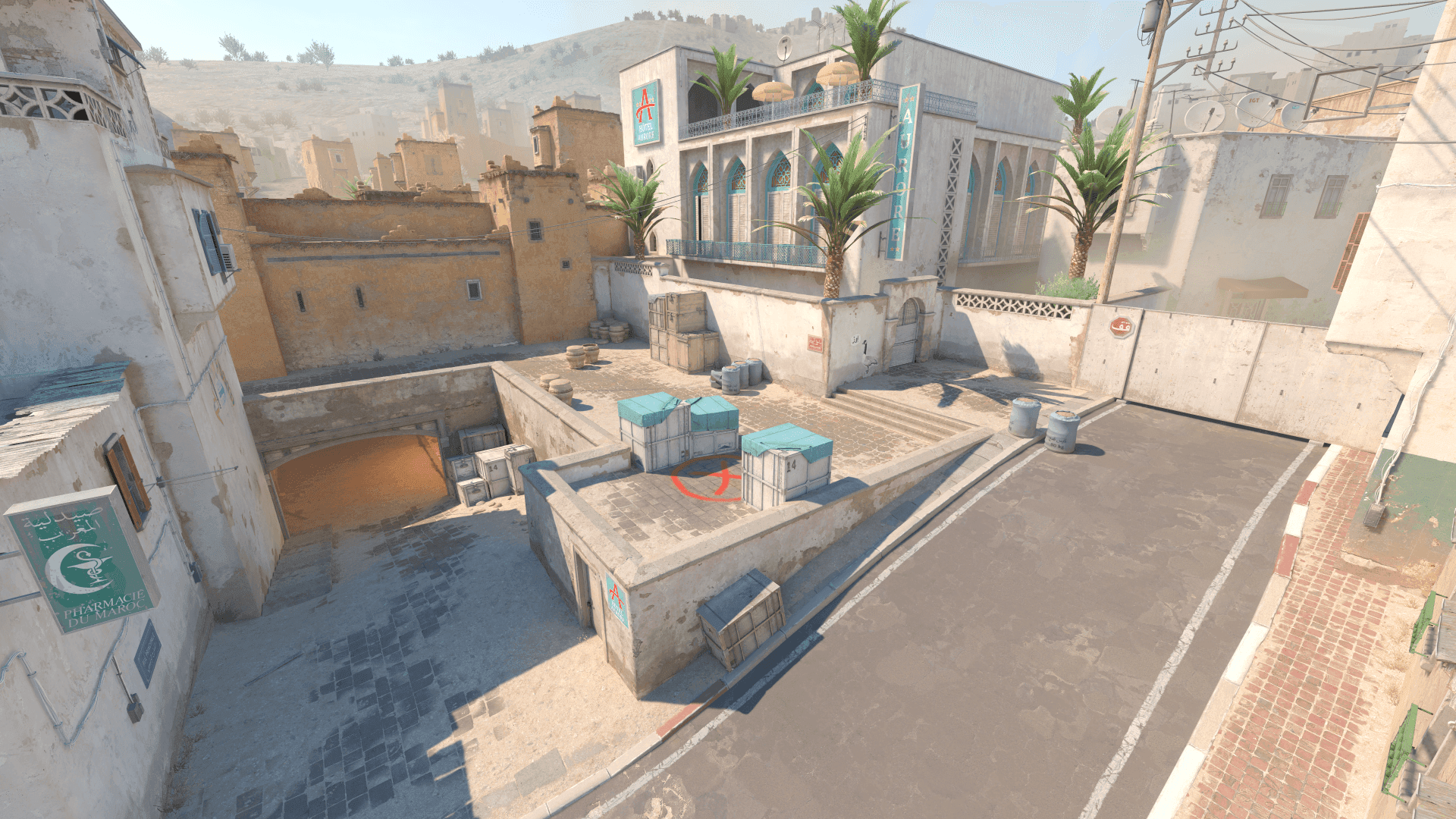
If the crosshair vanishes against bright surfaces, long-range taps and quick swings become harder because your eye has to search for the center.
Bright maps can wash out pale colors and thin lines. A good bright-map crosshair needs contrast against sky, concrete, sand, and light walls.
A strong CS2 crosshair visibility on bright maps setup should make real rounds easier to read. It should reduce hesitation, preserve comfort, and stay predictable when the match becomes noisy.
- Focus on the problem the setting is meant to solve.
- Keep changes easy to explain and easy to undo.
- Judge the result in match-like situations.
- Avoid copying values without context.
Recommended Crosshair for Bright Maps baseline
Start with saturated green, cyan, or a controlled custom color. Add a small outline only if bright surfaces still swallow the crosshair.
- Start with a simple setup before adding advanced tweaks.
- Save the old version before testing.
- Change one major setting at a time.
- Keep the setup stable for more than one session.
How to test Crosshair for Bright Maps
Test against sky, pale walls, bright floors, water, sand-colored areas, and utility flashes. Compare one color at a time with the same size and gap.
- Use the same routine for each comparison.
- Keep unrelated settings unchanged.
- Take notes after the session.
- Confirm results across several maps or drills.
Crosshair for Bright Maps by role and map
AWPers and riflers holding long bright angles should prioritize clear center visibility, while entries need the color to survive fast sky-to-wall transitions.
- Test the setting in the fights your role actually takes.
- Check at least two maps with different visual styles.
- Prioritize repeated problems over one-off discomfort.
- Keep role-specific changes documented.
Using Crosshair for Bright Maps in matches
In matches, bright-map visibility should let you track the crosshair through movement without adding bulky lines that cover distant heads.
- Use it for a full map session before calling it final.
- Watch how it behaves in pistol rounds, buys, and retakes.
- Keep notes after real matches.
- Revert if it creates hesitation under pressure.
Crosshair for Bright Maps mistakes to avoid
The mistake is choosing white or pale colors because they look clean in the menu. On bright maps they can disappear exactly when you need precision.
- Do not change several major settings at once.
- Do not copy settings that do not fit your hardware or role.
- Do not delete the previous stable version.
- Do not judge only from screenshots or warmup.
When to revisit Crosshair for Bright Maps
Revisit bright-map crosshair settings after changing brightness, monitor profile, HDR-like display settings, resolution, or crosshair outline.
- Review after hardware or resolution changes.
- Review after major CS2 or driver updates.
- Review when the same issue repeats across sessions.
- Avoid emergency changes right before serious matches.
Crosshair for Bright Maps checklist
Use this checklist when tuning CS2 crosshair visibility on bright maps. It keeps the process structured and prevents the usual cycle of random changes.
- Avoid pale colors that disappear on bright walls.
- Compare colors with identical size and gap.
- Use outline only if the base color needs help.
- Check distant targets against sky and light concrete.